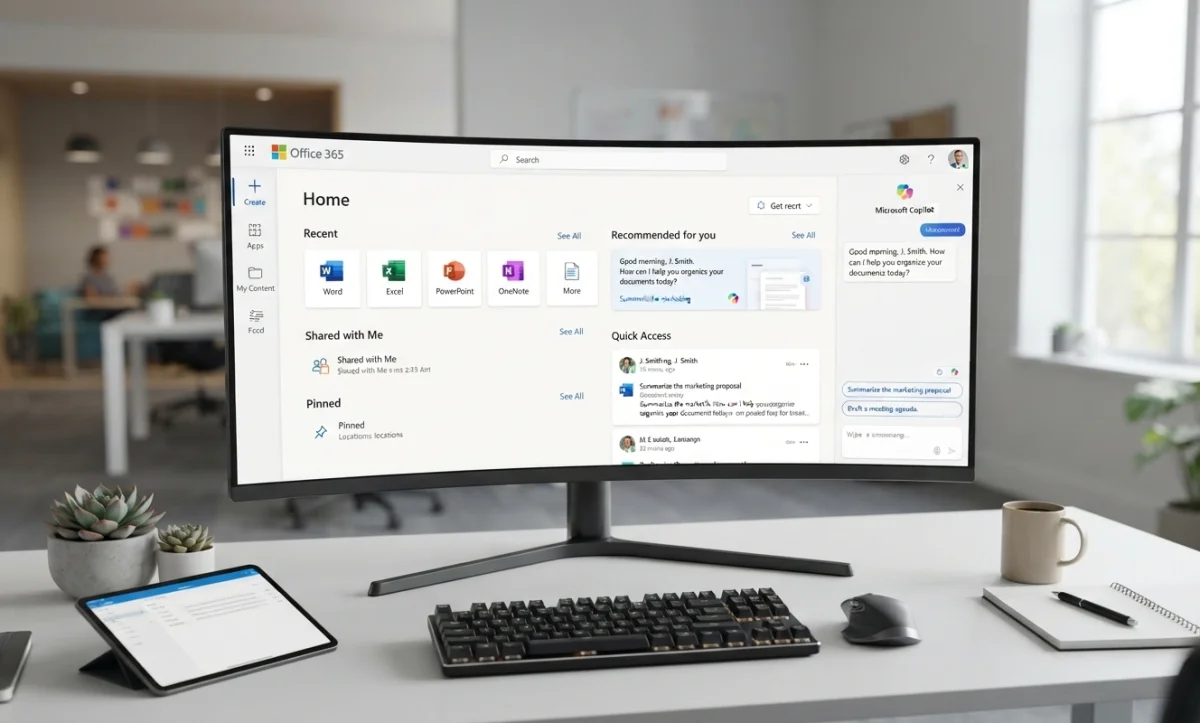
Top 5 Free Alternatives to Microsoft Office
Microsoft Office remains one of the most popular productivity suites for creating documents, spreadsheets and presentations. However, Microsoft 365 typically requires a subscription for the full desktop experience.
The good news is that there are several excellent free alternatives to Microsoft Office. Whether you need a replacement for Word, Excel or PowerPoint, you can find free office software that works offline, online, or across multiple operating systems.
Here are five of the best free alternatives to Microsoft Office in 2026.
1. LibreOffice
Best for: Offline desktop use and users who want open-source software
LibreOffice is one of the most established free and open-source alternatives to Microsoft Office. It provides a complete desktop productivity suite and is available for Windows, macOS and Linux.
LibreOffice includes several applications that correspond closely to Microsoft's Office programs:
- Writer – alternative to Microsoft Word
- Calc – alternative to Microsoft Excel
- Impress – alternative to Microsoft PowerPoint
- Draw – diagrams and graphics
- Base – database management
- Math – mathematical formula editing
LibreOffice can open and save many Microsoft Office file formats, including DOCX, XLSX and PPTX. It is particularly attractive if you want to work locally without relying on an internet connection.
Its biggest advantage is that it is open-source and does not require a Microsoft 365 subscription.
Advantages
- Free and open-source
- Works offline
- Available for Windows, macOS and Linux
- Full word processor, spreadsheet and presentation applications
- No Microsoft account required
Disadvantages
- Interface can feel different from Microsoft Office
- Some complex Microsoft Office documents may require formatting adjustments
- Real-time collaboration is not its main strength
Verdict: LibreOffice is an excellent choice if you want a powerful, completely free desktop office suite.
2. ONLYOFFICE
Best for: Microsoft Office file compatibility
ONLYOFFICE is another strong free alternative, particularly for users who regularly exchange DOCX, XLSX and PPTX files with Microsoft Office users.
The free desktop version includes applications for:
- Documents
- Spreadsheets
- Presentations
- PDF files and forms
ONLYOFFICE supports popular Microsoft Office formats including DOCX, XLSX and PPTX. Its desktop editors work on Windows, Linux and macOS and can be used offline.
The interface is also relatively familiar to Microsoft Office users, making the transition easier.
Advantages
- Free desktop editors
- Strong Microsoft Office format compatibility
- Works offline
- Supports Windows, Linux and macOS
- Includes document, spreadsheet and presentation editors
- PDF editing and forms are supported
- Online collaboration options are available
Disadvantages
- Some advanced features are associated with paid or server-based versions
- Smaller ecosystem than Microsoft Office
- Some Microsoft-specific features may not behave identically
Verdict: If you frequently exchange Microsoft Office documents with other people, ONLYOFFICE is one of the strongest free choices.
3. Google Docs, Sheets and Slides
Best for: Online collaboration
Google's productivity applications provide a browser-based alternative to Microsoft Word, Excel and PowerPoint.
- Google Docs – word processing
- Google Sheets – spreadsheets
- Google Slides – presentations
The major advantage is collaboration. Multiple people can work on the same document at the same time, making Google Workspace particularly useful for teams, students and remote workers.
You can also access your documents from different computers and devices, provided you have the appropriate account and internet access.
Advantages
- Free for personal use
- Excellent real-time collaboration
- Works in a web browser
- Easy document sharing
- Automatic saving
- Accessible from multiple devices
- Can work with Microsoft Office file formats
Disadvantages
- Primarily designed around cloud-based working
- Some advanced Microsoft Office features are unavailable or work differently
- Requires a Google account for the full experience
- Internet connectivity is preferable for the best experience
Verdict: Google Docs, Sheets and Slides are excellent if collaboration and accessibility are more important than having a traditional desktop office suite.
4. FreeOffice
Best for: Users who want a traditional Microsoft Office-style experience
FreeOffice is a free office suite from SoftMaker. It includes a word processor, spreadsheet application and presentation software.
The suite consists of:
- TextMaker – word processing
- PlanMaker – spreadsheets
- Presentations – presentations
According to the developer, FreeOffice is free for both personal and business use and supports Windows, macOS and Linux. It also provides compatibility with Microsoft Office formats.
One particularly useful feature is the choice between a modern ribbon interface and a more traditional menu-and-toolbar interface.
Advantages
- Free for personal and business use
- Windows, macOS and Linux support
- Microsoft Office-compatible file formats
- Familiar desktop interface
- Ribbon or classic menu interface
- Works offline
Disadvantages
- Not as feature-rich as Microsoft Office in some advanced areas
- Collaboration features are less extensive than cloud-based alternatives
- Some advanced Microsoft Office features may not translate perfectly
Verdict: FreeOffice is worth considering if you want a straightforward desktop office suite with a familiar interface.
5. WPS Office Free
Best for: Users who want a familiar Office-style interface and many built-in features
WPS Office is a popular productivity suite that combines word processing, spreadsheets and presentations in a package designed to resemble Microsoft Office.
It supports common Microsoft Office formats and is available on multiple platforms. It can be particularly attractive to users who prefer a modern ribbon-style interface.
The free version provides useful office functionality, although some advanced features and services are reserved for paid plans.
Advantages
- Familiar Microsoft Office-style interface
- Supports documents, spreadsheets and presentations
- Good compatibility with common Office formats
- Available across multiple platforms
- Includes additional productivity features
Disadvantages
- Free version includes limitations compared with premium editions
- Some advanced features require payment
- Users who prefer completely open-source software may prefer LibreOffice or ONLYOFFICE
Verdict: WPS Office is a good option if you want an Office-like interface and a large selection of productivity features without immediately paying for Microsoft 365.
Comparison of the Top 5 Free Office Alternatives
| Software | Best For | Offline | Collaboration | Microsoft Formats |
|---|---|---|---|---|
| LibreOffice | Offline desktop use | Yes | Limited | Good |
| ONLYOFFICE | Office file compatibility | Yes | Yes | Very good |
| Google Docs/Sheets/Slides | Online collaboration | Limited/offline options | Excellent | Good |
| FreeOffice | Traditional desktop office suite | Yes | Limited | Good |
| WPS Office | Office-style interface | Yes | Yes | Good |
Which Microsoft Office Alternative Should You Choose?
Choose LibreOffice if...
- You want completely free desktop software.
- You want open-source software.
- You frequently work without an internet connection.
- You do not want to subscribe to Microsoft 365.
Choose ONLYOFFICE if...
- You frequently exchange DOCX, XLSX or PPTX files.
- Microsoft Office compatibility is important.
- You want a modern desktop office suite.
- You want both offline and online options.
Choose Google Docs if...
- You frequently collaborate with other people.
- You want to work primarily through a web browser.
- You want easy document sharing.
- You work across multiple computers and devices.
Choose FreeOffice if...
- You want a lightweight traditional desktop office suite.
- You prefer a familiar Office-style interface.
- You need basic Word, Excel and PowerPoint alternatives.
Choose WPS Office if...
- You want an interface that feels familiar to Microsoft Office users.
- You want many productivity features in one application.
- You are comfortable with a free tier that has additional premium features.
Are Free Office Alternatives Good Enough?
For most home users, students and small businesses, free office suites can handle everyday tasks such as writing documents, creating spreadsheets, preparing presentations, opening PDF files and sharing documents.
The biggest compatibility issue usually occurs with very complex Microsoft Office documents. Advanced Excel macros, complicated formatting, embedded objects, specialized fonts and sophisticated PowerPoint animations may not always transfer perfectly between different office suites.
If you regularly exchange complicated business documents with Microsoft Office users, ONLYOFFICE or Microsoft Office itself may provide a smoother experience.
Final Recommendation
There is no single best free Microsoft Office alternative for everyone.
LibreOffice is an excellent all-round choice for offline desktop productivity, while ONLYOFFICE is particularly attractive when Microsoft Office file compatibility is important. Google Docs, Sheets and Slides are ideal for online collaboration. FreeOffice provides a traditional desktop experience, while WPS Office is suitable for users who prefer a familiar Office-style interface.
For a typical Windows home user who wants to replace Microsoft Word, Excel and PowerPoint without paying a subscription, I would recommend starting with LibreOffice or ONLYOFFICE. Both provide a substantial amount of functionality without requiring Microsoft 365.
Last reviewed: August 18, 2026
Related Articles
 Windows
How to Fix Windows 11 Slow Performance
Is your Windows 11 PC lagging, freezing or taking forever to boot? Follow this step-by-step guide to speed it up…
 Windows
How to Fix Blue Screen of Death (BSOD) Errors on Windows
Stop errors like IRQL_NOT_LESS_OR_EQUAL, CRITICAL_PROCESS_DIED and MEMORY_MANAGEMENT. Learn what BSODs mean and how to…
 Windows
How to Reset a Forgotten Windows Password Without Losing Files
Locked out of your Windows 10 or 11 PC? Here are safe, legal ways to regain access without losing your files.
Comments (0)
No comments yet. Be the first to share your experience!
Leave a comment