How Much RAM Do You Need? PC Memory Upgrade Guide
94% found this helpful
How much RAM do you actually need?
| Usage | Minimum | Recommended |
|---|---|---|
| Web browsing, email, office work | 8 GB | 8–16 GB |
| Windows 11 basic experience | 8 GB | 16 GB |
| Gaming (modern titles) | 16 GB | 32 GB |
| Video editing / 3D / CAD | 16 GB | 32–64 GB |
| Virtual machines, data work | 32 GB | 64 GB+ |
Step 1: Check what you have
- Press Ctrl+Shift+Esc → Performance tab → Memory.
- Note total size, speed (MHz) and slots used (e.g. "2 of 4").
- If "In use" is regularly above 80%, you're swapping to disk — more RAM will help.
Step 2: Check upgrade options
Run wmic memorychip get capacity,speed,manufacturer or use CPU-Z (our Download Center) to see module details. Search your exact laptop/board model for "max RAM" — some laptops max at 16 GB or have soldered (non-upgradeable) memory.
Step 3: Match specs
- Buy DDR4/DDR5 matching your board (not interchangeable!).
- Match or exceed existing speed — the system runs at the slowest module's speed.
- Desktop: install in pairs for dual-channel (2×8 GB beats 1×16 GB by ~10–15%).
- Laptop: SO-DIMM form factor — check if there's a free slot before buying.
Step 4: Install safely
- Shut down, unplug, discharge static by touching bare metal.
- Open the case/laptop panel, locate DIMM slots.
- Align the notch, press firmly until both clips click. If it doesn't seat, it's backwards.
Tip: After upgrading, run Windows Memory Diagnostic once to confirm the new stick is healthy — faulty RAM causes random crashes.
Still not sure?
Tell us your model and workload and we'll recommend the right upgrade. Ask a technician.
Related Articles
 Hardware
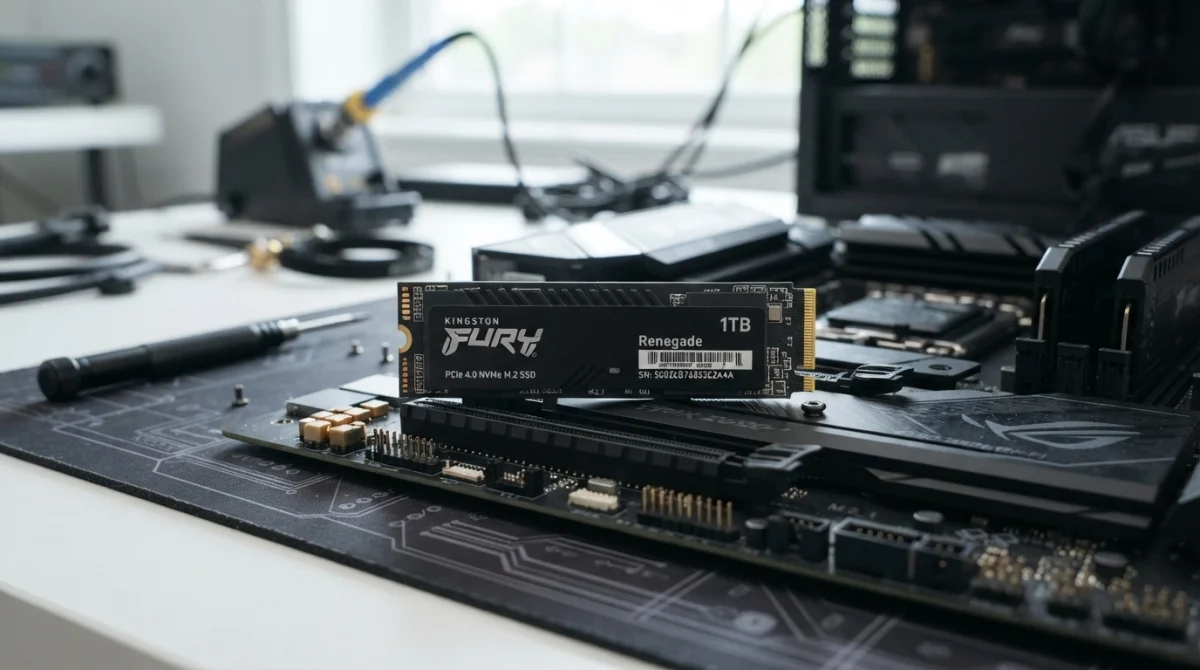
How to Clone Your Hard Drive to an SSD
Work-in-progress guide on cloning Windows to a new SSD using free tools.
 Hardware
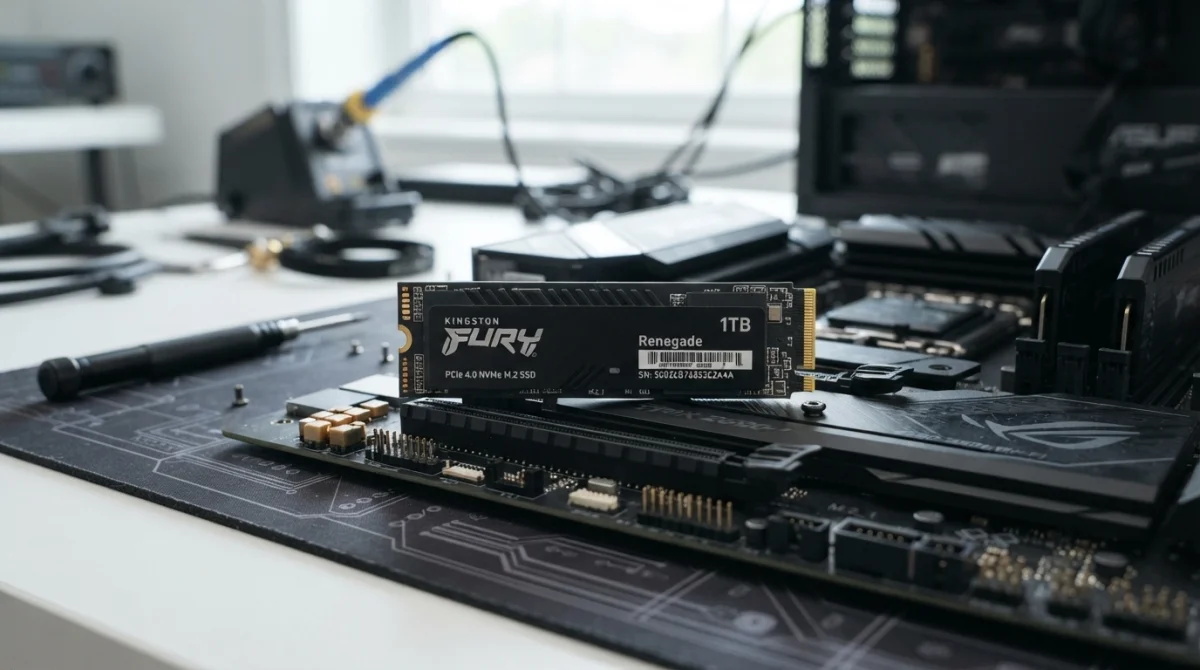
How to Extend the Life of Your SSD
Practical tips to keep your SSD healthy and fast for years.
 Hardware
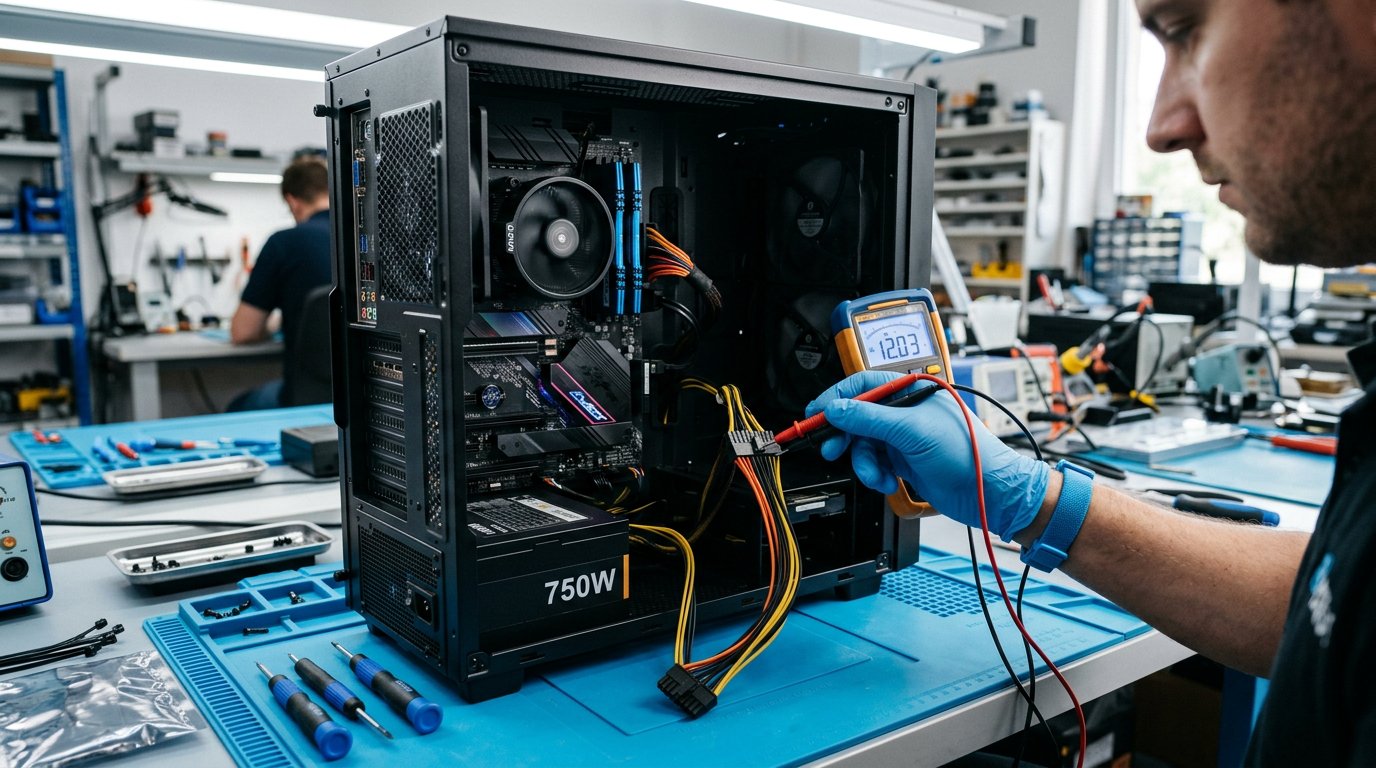
How to Diagnose a Dead Desktop PC: Step-by-Step Guide
PC won't power on at all? Beeps but no display? Work through this logical checklist to find the faulty component fast.
Comments (0)
No comments yet. Be the first to share your experience!
Leave a comment