
How to Test Your Hard Drive for Errors (SMART & CHKDSK)
Warning signs of a failing drive
- Files or folders suddenly missing or corrupted
- Programs hang when opening files; PC freezes randomly
- Clicking or grinding noises (HDD)
- Windows boots into automatic repair repeatedly
- CHKDSK runs by itself at startup
Step 1: Back up immediately
If you suspect drive failure, stop using the computer for anything else and copy your important files to another drive or the cloud right now. Drives can go from "flaky" to "dead" in hours.
Step 2: Check SMART health
- Open Command Prompt as administrator.
- Run:
wmic diskdrive get model,status— "OK" means SMART hasn't flagged failure (yet). - For details, install CrystalDiskInfo (free, in our Download Center). Watch for Caution or Bad status and attributes like Reallocated Sectors, Pending Sectors and Uncorrectable Errors — any value above 0 deserves attention.
Step 3: Run CHKDSK
chkdsk C: /f /rFor the system drive it schedules a scan at next reboot. /f fixes filesystem errors; /r also scans for physically bad sectors (slow on HDDs, hours on big drives).
Step 4: Surface-test with a third-party tool
For HDDs, run a read/write surface test (Victoria, HD Tune, or macOS/Windows vendor tools). For SSDs, use the vendor's own diagnostic — Samsung Magician, Crucial Storage Executive, WD Dashboard. They also show TBW (total bytes written) vs the drive's rated endurance.
Step 5: Interpret results and act
- SMART OK + no bad sectors: your problem is probably software — run SFC/DISM (see our Windows guides).
- Bad sectors found but drive otherwise OK: back up, then replace the drive soon. Treat it as a warning.
- Reallocated/pending sectors growing, noises, SMART Caution: replace the drive now.
Data recovery
If the drive has already failed, stop powering it on and contact our recovery service — DIY attempts can destroy your data permanently.
Related Articles
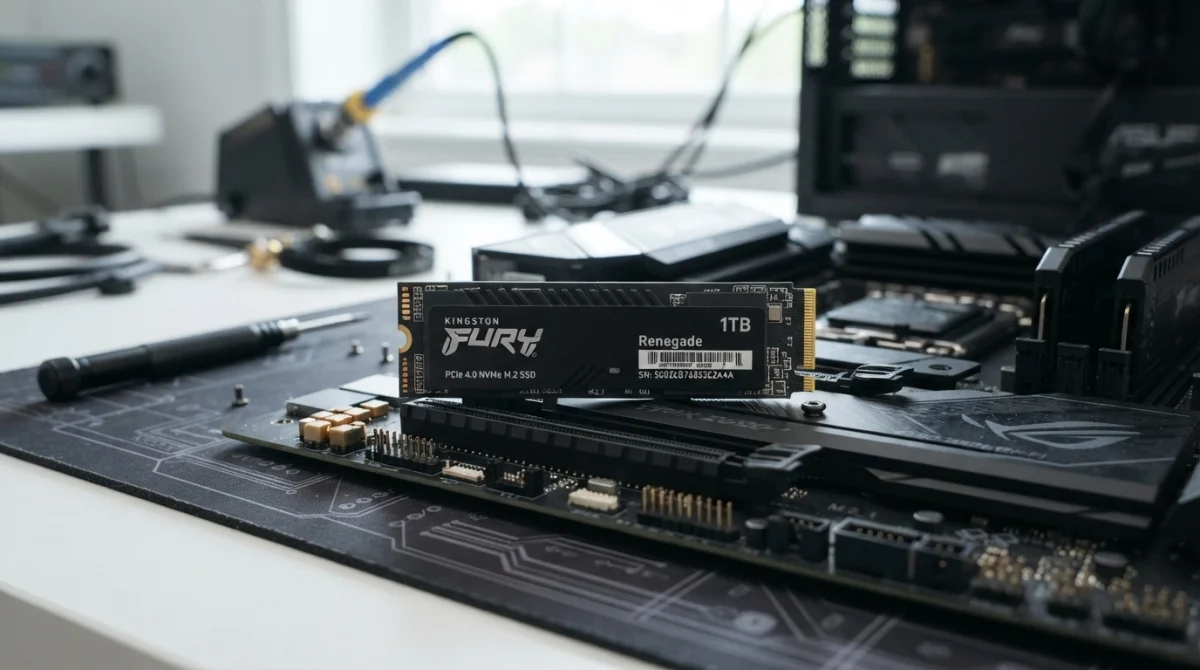 Hardware
How to Clone Your Hard Drive to an SSD
Work-in-progress guide on cloning Windows to a new SSD using free tools.
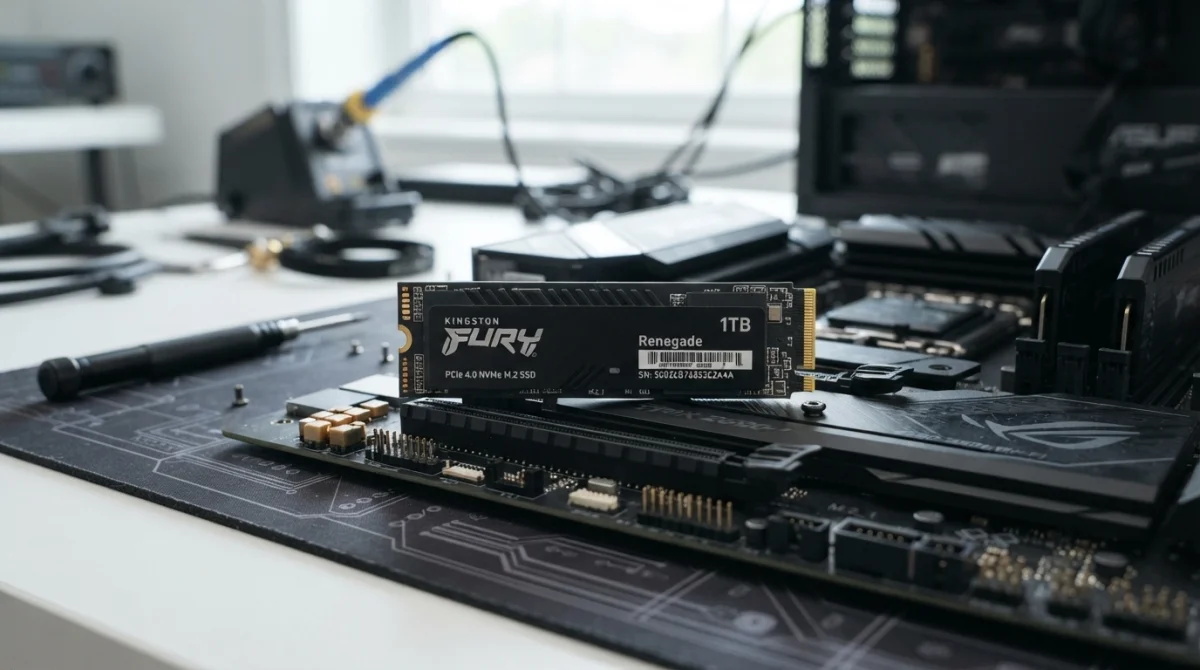 Hardware
How to Extend the Life of Your SSD
Practical tips to keep your SSD healthy and fast for years.
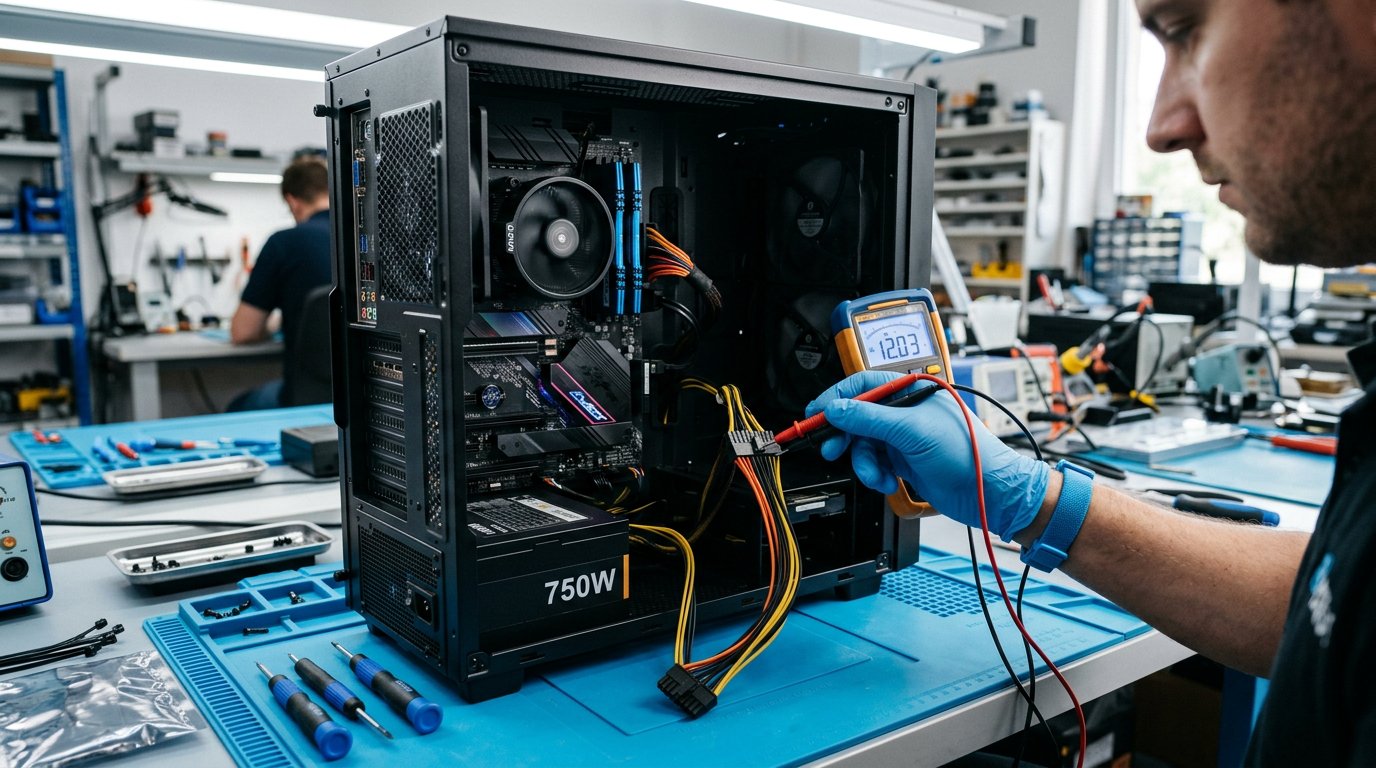 Hardware
How to Diagnose a Dead Desktop PC: Step-by-Step Guide
PC won't power on at all? Beeps but no display? Work through this logical checklist to find the faulty component fast.
Comments (0)
No comments yet. Be the first to share your experience!
Leave a comment